You have probably heard the phrase “web scraping” many times, but what exactly is it?
Web scraping, also known as web harvesting or web data extraction, is a technique used to extract data from a website by means of software programs. Usually, these programs simulate human browsing on the World Wide Web by using the Hypertext Transfer Protocol (HTTP) or a browser, such as Internet Explorer or Mozilla Firefox. Thanks, Wikipedia.
That naturally leads to the next question: why should I use this technique?
When the concept of RESTful API became widespread, most developers imagined a world of freely accessible data. Any application, such as an e-commerce tool, would have been able to connect to an API and obtain all the data it could potentially need.
Unfortunately, many companies realized that those data sets were far more valuable in their own hands and not worth sharing for free. That is why today you cannot always find an open-source API to rely on when you need one.

Suppose we want to build a web app that compares the price of an iPhone X across multiple e-commerce websites at the same time, so it can immediately show the lowest one to the user. Now let’s assume that only 50% of those platforms offer an API that exposes their store data.
That is clearly a problem that can be solved with web scraping.
So we are going to see how to build a small Node.js app capable of fetching the latest five 64GB iPhone X listings on Amazon.it thanks to a very powerful tool: Puppeteer.
Puppeteer is a Node.js library that provides a high-level API for controlling Chrome or Chromium through DevTools (online sandbox).
Among the many things it can do, you can:
- Generate screenshots and PDFs from web pages
- Perform HTTP requests
- Change the page viewport
- Access DOM APIs
- Run automated tests
- And much more…
Assuming you already have Node.js installed, if not I recommend
watching this short video, the first steps are simple:
create a folder, for example called web-scraping, run npm init --yes inside it to generate package.json, and
then install Puppeteer with npm i puppeteer.
Once those initial rituals are done, create a file called app.js in that folder and open it in your IDE.
First of all, we need to import Puppeteer and declare the domain we want to scrape, in this case Amazon:
// load puppeteer
const puppeteer = require('puppeteer');
const domain = "https://www.amazon.it";
Then we can start defining a few initial settings:
// IIFE
(async () => {
  // wrapper to catch errors
  try {
    // create a new browser instance
    const browser = await puppeteer.launch();

    // create a page inside the browser;
    const page = await browser.newPage();

    // navigate to a website and set the viewport
    await page.setViewport({ width: 1280, height: 800 });
    await page.goto(domain, {
      timeout: 3000000
    });

  } catch (error) {
    // display errors
    console.log(error)
  }
})();
The main function is an asynchronous
IIFE (Immediately Invoked Function Expression)
that executes the JavaScript code immediately. All Puppeteer methods return
Promises, so for
convenience we will use async/await instead of chaining .then() calls and keep
the code cleaner.
Let’s quickly look at what the lines in the snippet are doing:
await puppeteer.launch();creates a new browser instanceawait browser.newPage();creates a page inside Chromepage.setViewport({ width: 1280, height: 800 });defines the window size, whileawait page.goto(domain, { timeout: 3000000 });performs the HTTP request and reaches the domain we defined earlier.
You will also notice that a timeout was defined. This is used to override Puppeteer’s default timeout for HTTP
requests, because some domains may take longer to respond.
As mentioned earlier, Puppeteer can interact with the DOM, and this feature is essential if you want to simulate browsing inside a browser.
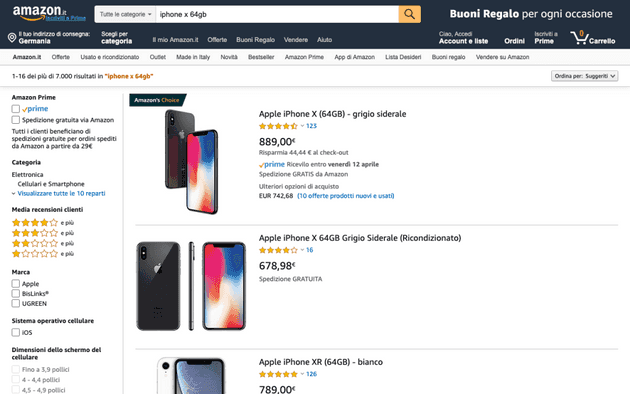
Now we will perform a real search directly from the Amazon.it input field and wait for the store results. As the cherry on top, we will also generate a .png screenshot of the page.
// search and wait for the product list
await page.type('#twotabsearchtextbox', 'iphone x 64gb');
await page.click('input.nav-input');
await page.waitForSelector('.s-image');

// take a screenshot
await page.screenshot({path: 'search-iphone-x.png'});
The screenshot will be saved in the root of your project and it is exactly what Puppeteer is rendering:
Another very important thing to focus on is waitForSelector, which waits until a specific DOM node has been rendered
in the client. Without it, the page could be incomplete. In our case I chose .s-image, the CSS class assigned to the
product images.
The last step is DOM parsing. The goal is to extract the name, product URL, image URL, and price from each iPhone.
To do that, we need to use the evaluate() method.
const products = await page.evaluate(() => {
  const links = Array.from(document.querySelectorAll('.s-result-item'));
  return links.map(link => {
    if (link.querySelector(".a-price-whole")) {
      return {
        name: link.querySelector(".a-size-medium.a-color-base.a-text-normal").textContent,
        url: link.querySelector(".a-link-normal.a-text-normal").href,
        image: link.querySelector(".s-image").src,
        price: parseFloat(link.querySelector(".a-price-whole").textContent.replace(/[,.]/g, m => (m === ',' ? '.' : ''))),
      };
    }
  }).slice(0, 5);
});

console.log(products.sort((a, b) => {
  return a.price - b.price;
}));

await browser.close();
At the beginning we need to find all the nodes that contain products. In this case we use the .s-result-item class and
with querySelectorAll we obtain a NodeList, which must then be converted into an array. At that point it is enough
to iterate over it, access each node reference, select the inner elements, and return an object.
Finally, we simply use sort to order the products by price and then close the browser that Puppeteer opened.
Output:
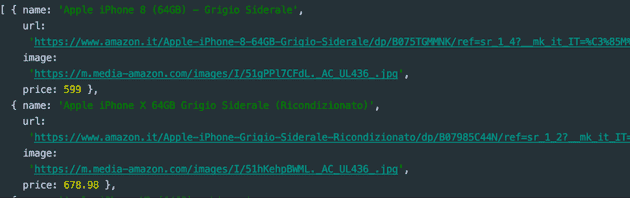
Obviously, Amazon’s search engine also returned an iPhone 8. At that point it is up to you to filter the different products with ad hoc rules.
This is only one of the many things you can do with Node.js and Puppeteer.
Pretty amazing, isn’t it? We have effectively created something that looks like a small crawler. Many companies use these techniques to compare products, travel options, and much more.
Below is the complete source code, which you can run from the project root with node app.js:
// load puppeteer
const puppeteer = require('puppeteer');
const domain = "https://www.amazon.it";

// IIFE
(async () => {
  // wrapper to catch errors
  try {
    // create a new browser instance
    const browser = await puppeteer.launch();

    // create a page inside the browser;
    const page = await browser.newPage();

    // navigate to a website and set the viewport
    await page.setViewport({ width: 1280, height: 800 });
    await page.goto(domain, {
      timeout: 3000000
    });

    // search and wait for the product list
    await page.type('#twotabsearchtextbox', 'iphone x 64gb');
    await page.click('input.nav-input');
    await page.waitForSelector('.s-image');

    // take a screenshot
    await page.screenshot({path: 'search-iphone-x.png'});

    const products = await page.evaluate(() => {
      const links = Array.from(document.querySelectorAll('.s-result-item'));
      return links.map(link => {
        if (link.querySelector(".a-price-whole")) {
          return {
            name: link.querySelector(".a-size-medium.a-color-base.a-text-normal").textContent,
            url: link.querySelector(".a-link-normal.a-text-normal").href,
            image: link.querySelector(".s-image").src,
            price: parseFloat(link.querySelector(".a-price-whole").textContent.replace(/[,.]/g, m => (m === ',' ? '.' : ''))),
          };
        }
      }).slice(0, 5);
    });

    console.log(products.sort((a, b) => {
      return a.price - b.price;
    }));

    // close the browser
    await browser.close();
  } catch (error) {
    // display errors
    console.log(error)
  }
})();