When I first got close to client-side applications, it felt natural to ask myself a few questions about performance.
Many developers who build server-side front-end templates do not worry too much about this aspect, because the server renders pages much faster than the client and applications of this kind are often MPAs (Multi Page Applications).
In a client-side context, and especially with a SPA (Single Page Application), things change very quickly.
The best way to build a fast and efficient application is to think of the client as your enemy. It will always work against you because of the limited resources it offers.
Let’s take a React-based example. Imagine we have a client-side web app containing a component that is rendered by a logical condition, for example a change in state. The final result could look like this:
render() {
  const { ConditionalRender } = this.state;
  return (
    <div className="App">
      <header className="App-header">
        <img src={logo} className="App-logo" alt="logo" />
        <h1 className="App-title">Welcome to React</h1>
      </header>
      {ConditionalRender &&
        <MyAwesomeComponent />
      }
    </div>
  );
}
In this case, MyAwesomeComponent will be included in the Webpack bundle, for example if you used
Create React App, even though the user may never actually see it, since the ConditionalRender state might never
change. In this specific example the saving may only be a few kilobytes, but in larger applications we force the user
to download elements that are not present in the current view, increasing page load more and more.
What we can do to improve this is use dynamic imports.
The basic idea is to split the components we do not want loaded in the main bundle into separate chunks. To do that, we can build an HOC (Higher-Order Component) that loads components from outside the main package:
// Async Component from Maximilian Schwarzmüller
import React, { Component } from 'react';

const asyncComponent = (importComponent) => {

  return class extends Component {
    state = {
      component: null,
    };

    componentDidMount() {
      importComponent()
        .then(cmp => {
          this.setState({ component: cmp.default });
        });
    }

    render() {
      const Chunk = this.state.component;
      return Chunk ? <Chunk {...this.props} /> : null;
    }
  };
};

export default asyncComponent;
This HOC component will actually load the real component through a .then().
When we import our component, the code could look like this:
const MyAwesomeComponent = asyncComponent(() => import('./components/MyAwesomeComponent'));

// some code

render() {
  const { ConditionalRender } = this.state;
  return (
    <div className="App">
      <header className="App-header">
        <img src={logo} className="App-logo" alt="logo" />
        <h1 className="App-title">Welcome to React</h1>
      </header>
      {ConditionalRender &&
        <MyAwesomeComponent />
      }
    </div>
  );
}
You can see that MyAwesomeComponent is imported inside a function as if it were an argument. During the
production build, Webpack will create a chunk file thanks to the nested import of our component:
() => import('./components/MyAwesomeComponent')
This technique can also be used inside routes. In the case of react-router-dom, for example, it is enough to pass
the MyAwesomeComponent constant into the Route like this:
<Route path="/example" component={MyAwesomeComponent} />
Now, once you run yarn build or npm run build, depending on the package manager you use, you will be able to see your chunk file inside the build folder.
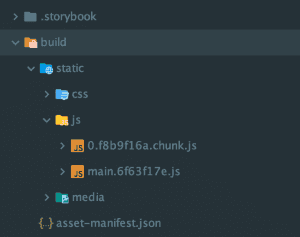
If you open your production Webpack configuration, you can see the portion of code that creates our chunk files:
output: {
  // The build folder.
  path: paths.appBuild,
    // Generated JS file names (with nested folders).
    // There will be one main bundle, and one file per asynchronous chunk.
    // We don't currently advertise code splitting but Webpack supports it.
    filename: 'static/js/[name].[chunkhash:8].js',
    chunkFilename: 'static/js/[name].[chunkhash:8].chunk.js',
    // We inferred the "public path" (such as / or /my-project) from homepage.
    publicPath: publicPath,
    // Point sourcemap entries to original disk location (format as URL on Windows)
    devtoolModuleFilenameTemplate: info =>
    path
      .relative(paths.appSrc, info.absoluteResourcePath)
      .replace(/\\/g, '/'),
},
If you launch your application now, you will notice that a network request is made when the application state changes.
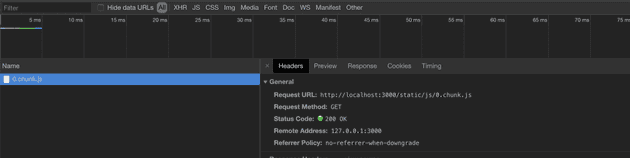
Thanks to this technique, we can optimize the application by reducing bundle size and serving the user only what they are actually viewing.
In React 16.6, it is possible to split your application with a new and simpler feature. I recommend reading my article about it: How to Do Code Splitting with React and Suspense
It is important to know that: splitting your entire application into chunks is counterproductive, because you end up forcing the user to request additional files for no reason. The app becomes smaller in size, but slower to load because of the extra round trips.